External Captive Portal with Alta Labs

Getting set up with AltaLabs is one of the simplest approaches out there. Just follow these few steps to get up and running:
- Login to your Alta Labs account
- Portal: https://manage.alta.inc
- user: my email
- pass: my password
Alta Portal settings
- Go to settings, Add new:

- Choose Network Type

In the Hotspot section:
- Add a Redirect URL (the one in the image is just for demo purposes)
- Authorization Secret

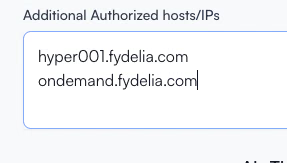
Add Additional Authorized Hosts/IPs:
Fydelia Portal/Splash page setup
Login to your Fydelia Portal account:
- Portal: https://ondemand.fydelia.com/portal/
- user: my email
- pass: my password
Go to:

Add Entry and select Alta from the drop-down:

Enter the details:

- Enter Unique Name - Enter any name or a Venue name
- Alta Secret - You will get it from your Alta account (screenshot above in the HotSpot Section)
- Alta IAPP Key - You will get it from your Alta account (next screenshot)
- Alta Session - 1440 minutes equals 1 day
Click "Save Provider"
Obtaining the IAPP Key


Fydelia Splash page setup
- Click on the edit option

- From the left side menu choose Alta Form and Drag-Drop it on the Splash page

- Edit the Form and choose Alta from the Dropdown


- Don't forget to SAVE and PUBLISH
You have now successfully set up an external captive portal.