How To Change The Redirect URL After Successful Login
It's easy to direct your guests to a website or even your Facebook or Instagram page once they have logged in to WiFI
Prerequisites: You must already be in edit mode with your splash page. (See Finding and Editing Your Splash Page.)
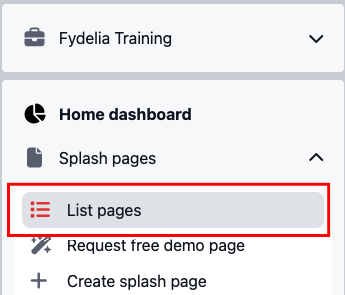
1. Viewing your splash pages - To view and edit your splash pages choose the List Pages from the Splash Pages menu.
2. Edit - To edit your page, hover the settings "cog wheel" and click the EDIT icon.

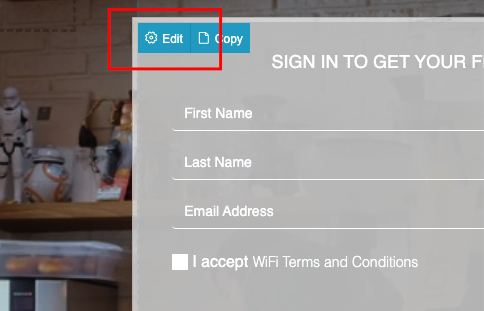
3. Hover over the login form until the blue context menu appears and click Edit.
4. Then scroll down the settings until you find the Continue URL setting. Set Override Continue URL the override to Yes (1). Enter the URL for new guests in box (2) and the URL for returning guests in box (3).
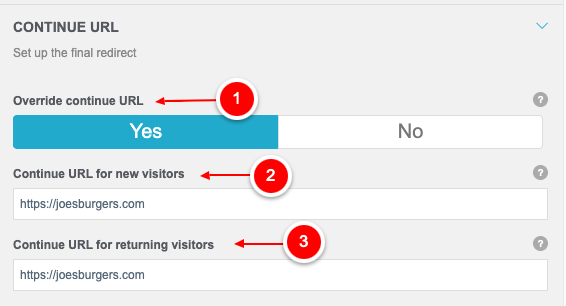
Some splash forms, such as UniFI, also support the ability to send a returning customer to a different URL after an auto-login.
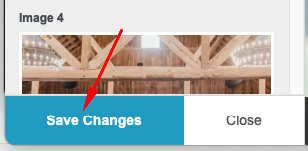
5. Click Save Changes in the bottom left of the screen.
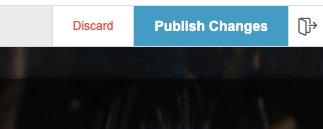
6. Now save all of your changes by clicking Publish Changes. You're all set! our guests will now be automatically redirected after a successful WiFi login.