
Skip to main content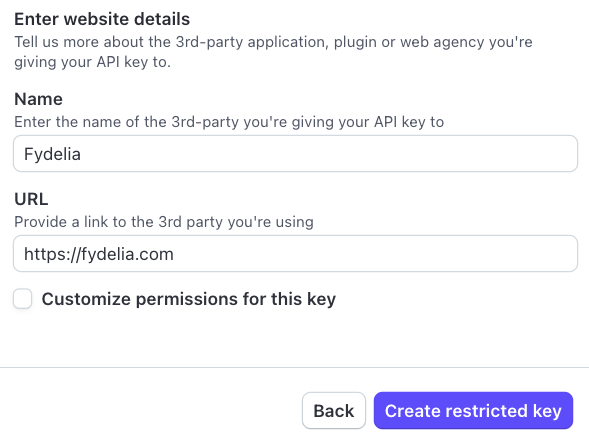

Welcome to the Fydelia Support Hub
Getting Started
- Adding a new client account
- Adding another account user
- Age-based marketing redirects
- Changing a static background
- Connecting your Access Point with a PoE Power Injector
- Creating a UniFiOS admin user for external captive portal
- Custom domains and white labelling
- DOB Redirect - landing page based on visitors' age
- Downloading your invoices
- Enabling Fydelia Presence Analytics on Cisco Meraki
- Facebook Pixel For Fydelia
- Finding and editing your splash page
- Generating free voucher codes
- Getting started as a reseller
- Getting started with the portal
- Hotel WiFi Features
- How to add a background slider with zoom effect to your guest WiFi splash page
- How to change the redirect URL after successful login
- How to enable automatic email validation
- How to play a video Ad before guest WiFi users can sign on
- Instant provision of a new account
- iPhone QR scanning won't redirect to captive portal
- Key Announcement for UniFi API Users: MFA - Multi Factor Authentication with Ubiquiti UniFi in July 2024
- Logging in to your account
- Managing your clients with sub-accounts
- Managing your subscription
- Piggy integration with Fydelia WiFi
- Purchasing vouchers with WiFi Pass
- Real time analytics dashboard
- Reports
- Set VAT amount on your WiFi passes
- Simplifying Guest WiFi
- Starting a 14-day trial
- Stripe Key Settings
- Switching accounts in Reseller mode
- The UniFi controller interface versions
- Use your WiFi for COVID-19 Track & Trace
- Using free vouchers in your Fydelia splash page
- Walled Garden and Firewall IP settings
- What is WiFi marketing?
- WiFi Pass Overview
- Show Remaining Articles (26) Collapse Articles
- AdCards
- Age-based marketing redirects
- Custom domains and white labelling
- DOB Redirect - landing page based on visitors' age
- Facebook Pixel For Fydelia
- Hotel WiFi Features
- How to enable automatic email validation
- Purchasing vouchers with WiFi Pass
- Real time analytics dashboard
- Reports
- Test article
- Use your WiFi for COVID-19 Track & Trace
- WiFi Pass Overview
- Adding a certificate to a Fortigate Captive portal to prevent browser errors
- Age-based marketing redirects
- Changing a static background
- Connecting your Access Point with a PoE Power Injector
- Creating a UniFiOS admin user for external captive portal
- Enabling Fydelia Presence Analytics on Cisco Meraki
- Finding and editing your splash page
- Getting started with the portal
- How to add a background slider with zoom effect to your guest WiFi splash page
- How to add an Account user to your Account
- How to block a compromised Amazon Firestick
- How to change the redirect URL after successful login
- How to Download the Visitor Reports
- iPhone QR scanning won't redirect to captive portal
- Key Announcement for UniFi API Users: MFA - Multi Factor Authentication with Ubiquiti UniFi in July 2024
- Logging in to your account
- Piggy integration with Fydelia WiFi
- Reserved classes
- The UniFi controller interface versions
- Walled Garden and Firewall IP settings
- Show Remaining Articles (5) Collapse Articles
Hardware and Networks
- Accessing your Fydelia dashboard
- Applying an SSL Certiificate to your MikroTik HotSpot
- Aruba - built in controller
- Aruba InstantOn
- Cambium - Setup guide
- Cisco Meraki
- Cisco Mobility Express
- Configuring your UniFi controller to redirect guests to Fydelia splash pages
- Configuring your UniFi Splash page
- Connecting your UniFi Access Point
- Creating a FortiNet External Captive Portal
- Creating a Fydelia captive HotSpot portal on a MikroTik RouterBoard
- Creating a MikroTik Hotspot on a VLAN
- Creating a UniFiOS admin user for external captive portal
- Creating an EnGenius splash page
- Datto OpenMesh Setup Guide
- DrayTek Vigor 28xx
- Enabling an External Captive Portal with Ruckus ONE
- External Captive Portal with Alta Labs
- External Captive Portal with TPLink OMADA
- External Captive Portal with TPLink OMADA 5.15.x
- External Captive portal with Zyxel Nebula
- ExtremeCloud IQ / Aerohive
- Getting Fydelia connected to your network
- Grandstream external captive portal - Setup guide
- Guest Email validation with MikroTik
- Guest internet Voucher coupon generation on MikroTik
- Guest WiFi EnGenius Cloud setup
- How to redirect D-Link Nuclias guests to a Fydelia external captive portal
- IgniteNet ecCloud External Captive Portal setup
- Migrating UniFi APs to another controller
- Remote access to Mikrotik
- Ruckus - SmartZone Setup Guide
- Ruckus - ZoneDirector Setup Guide
- Ruckus Unleashed External Captive Portal setup
- Setting up voucher pages with Plasma Cloud
- SonicWall - Setup guide
- Step by Step : Connecting a UniFi Access Point
- UniFi "No Internet connection"
- UniFi Hotspot Manager
- UniFi issue with iPhones - won't redirect to the captive portal
- UniFi known issue: Problems connecting with Laptops
- UniFi Version 6 and earlier - captive portal setup
- UniFi Version 7.x captive portal setup
- UniFiOS captive portal splash page setup
- Walled Garden and Firewall IP settings
- What is PoE?
- Show Remaining Articles (32) Collapse Articles
- Accessing UDM Pro directly from the WAN
- Configuring your UniFi controller to redirect guests to Fydelia splash pages
- Configuring your UniFi Splash page
- Connecting your UniFi Access Point
- Creating a UniFiOS admin user for external captive portal
- Key Announcement for UniFi API Users: MFA - Multi Factor Authentication with Ubiquiti UniFi in July 2024
- Migrating UniFi APs to another controller
- Step by Step : Connecting a UniFi Access Point
- The UniFi controller interface versions
- UniFi "No Internet connection"
- UniFi Hotspot Manager
- UniFi issue with iPhones - won't redirect to the captive portal
- UniFi known issue: Problems connecting with Laptops
- UniFi Version 6 and earlier - captive portal setup
- UniFi Version 7.x captive portal setup
- UniFiOS captive portal splash page setup
- Show Remaining Articles (1) Collapse Articles
Integrations
- Build your DotMailer marketing database using WiFI
- Integrating with your TalkBox account
- Piggy integration with Fydelia WiFi
- Send customer WiFi data in real time to your MailChimp email marketing platform
- Send Guest WiFi data to your Campaign Monitor list
- Send guest WiFi data to your SproutSend marketing platform
- Toggle by Airship
- WiFi integration with Klaviyo CRM
- Zapier Integration Overview
- Build your DotMailer marketing database using WiFI
- Integrating with your TalkBox account
- Piggy integration with Fydelia WiFi
- Send customer WiFi data in real time to your MailChimp email marketing platform
- Send Guest WiFi data to your Campaign Monitor list
- Send Guest WiFi data to your Constant Contact lists
- Send guest WiFi data to your SproutSend marketing platform
- Toggle by Airship
- WiFi integration with Klaviyo CRM
- Zapier Integration Overview
Print
Stripe Key Settings
When using WiFi Pass you will need to enter your Stripe.com publishable key (pk) and also a restricted key (rk). Never use your secret key (sk).
How to create your restricted key
Log in to your stripe account and visit https://dashboard.stripe.com/apikeys
Click “Create restricted key”
Choose the option for providing your key to another website
Give the key a name and URL:
IMPORTANT: Your key will be shown to you just once. Copy the key and click DONE.
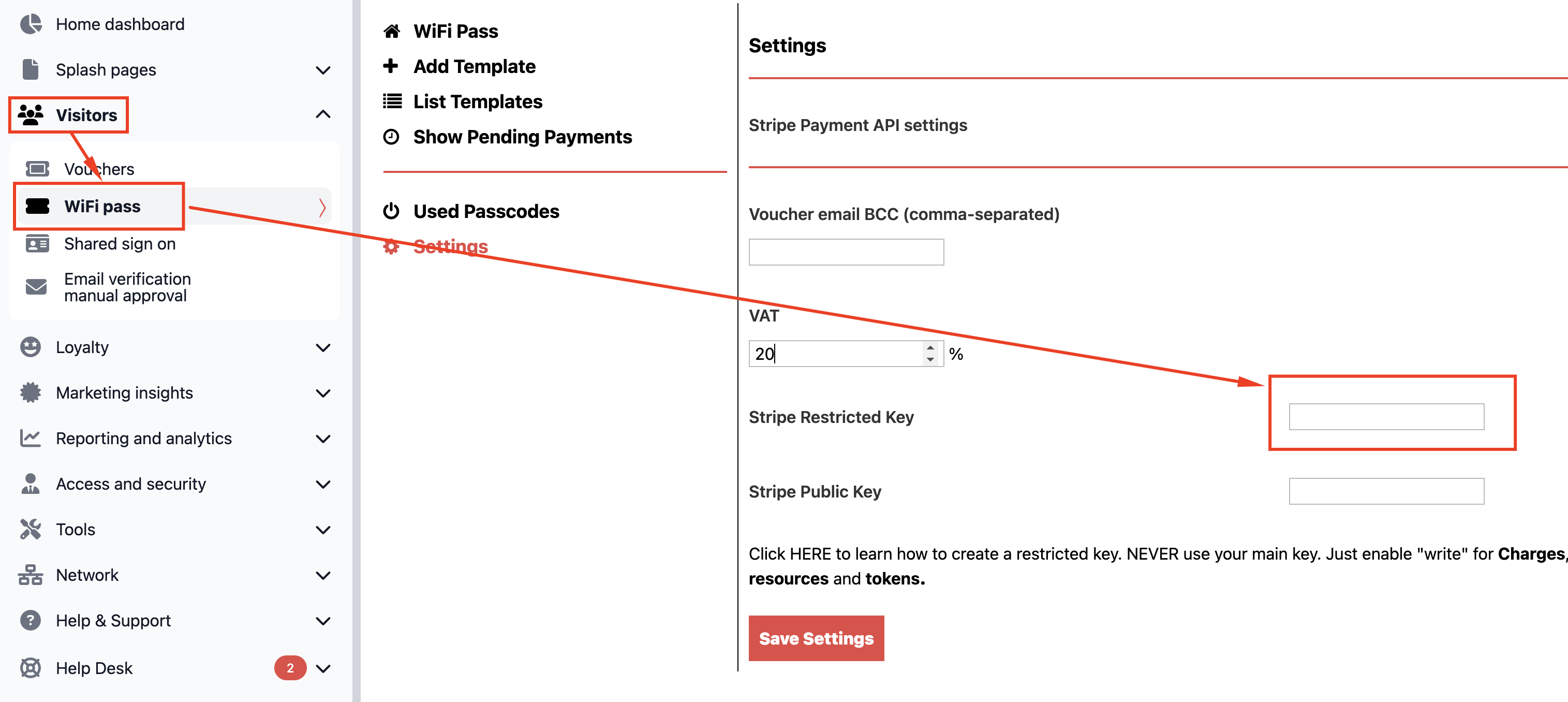
In the Fydelia portal, go to Visitors – WiFi Pass and paste the key here:
You must also paste in your Publishable key into the Public key box.
Save your settings
Table of Contents